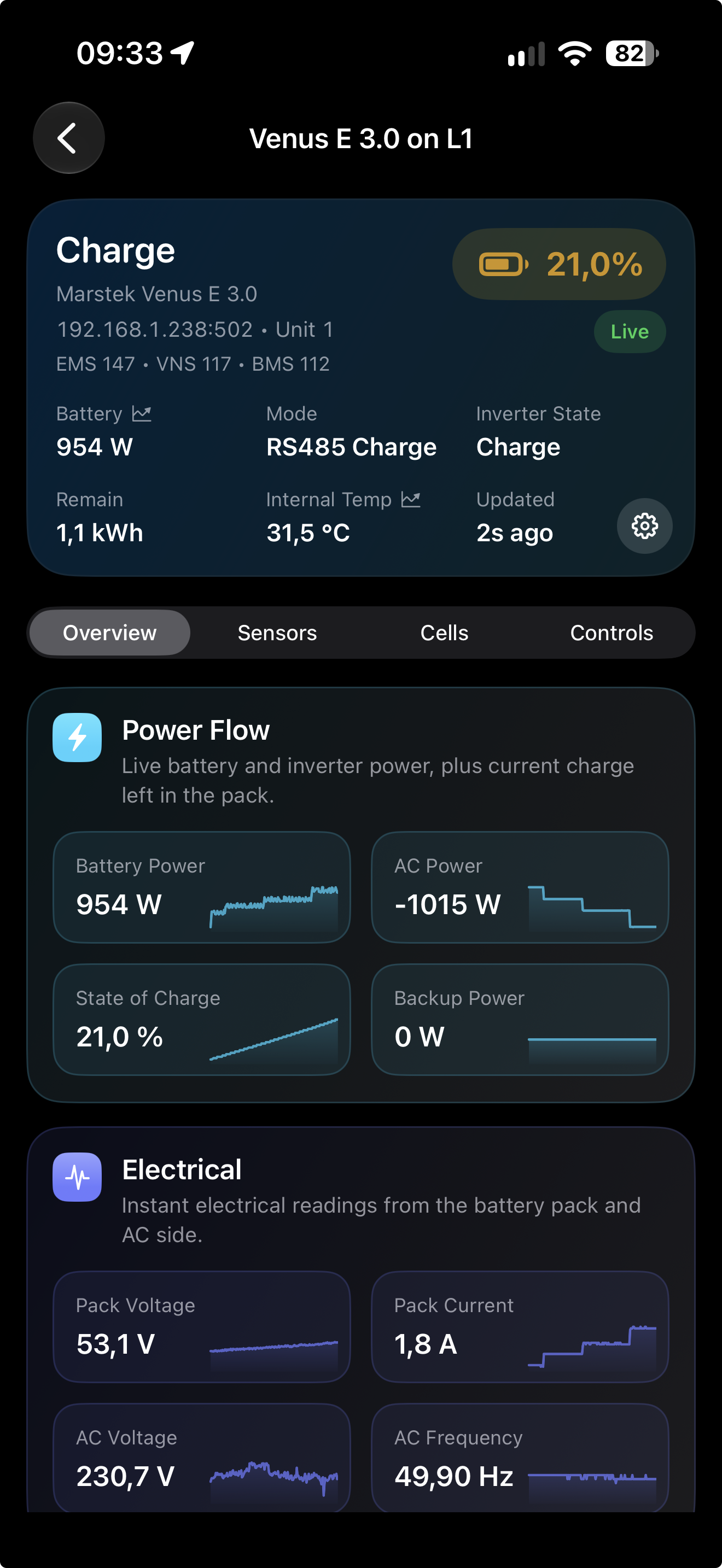
Live Overview
See Power Flow, electrical values, operating state, and live mini graphs for the battery system at a glance.

APEXone product
Real-time battery monitoring and control over Modbus TCP
Monitor live values, inspect cell data on compatible models, control charging behavior, and manage schedules from a clean iPhone app.
Supports Marstek Venus E 3.0, Venus E 2.0 (Gen 2), and Venus C/E Gen 1. Connection method depends on your battery model.
Feature highlights
APEXpulse keeps the most important battery data and controls close at hand, with a layout designed for fast decisions and quick checks.
See Power Flow, electrical values, operating state, and live mini graphs for the battery system at a glance.
Track temperature, cell delta, cycle information, and other live indicators that help explain battery behavior.
Inspect individual cell voltages and cell imbalance on compatible models, including the Venus E 3.0.
Use capability-dependent controls for charging, discharging, power limits, backup, and schedules.
Screenshots
These screens are being refreshed to show the current product, from live overview and vitality insights to telemetry, graphs, controls, and scheduling.
See live battery power, AC power, state of charge, and visual mini graphs in one focused view.
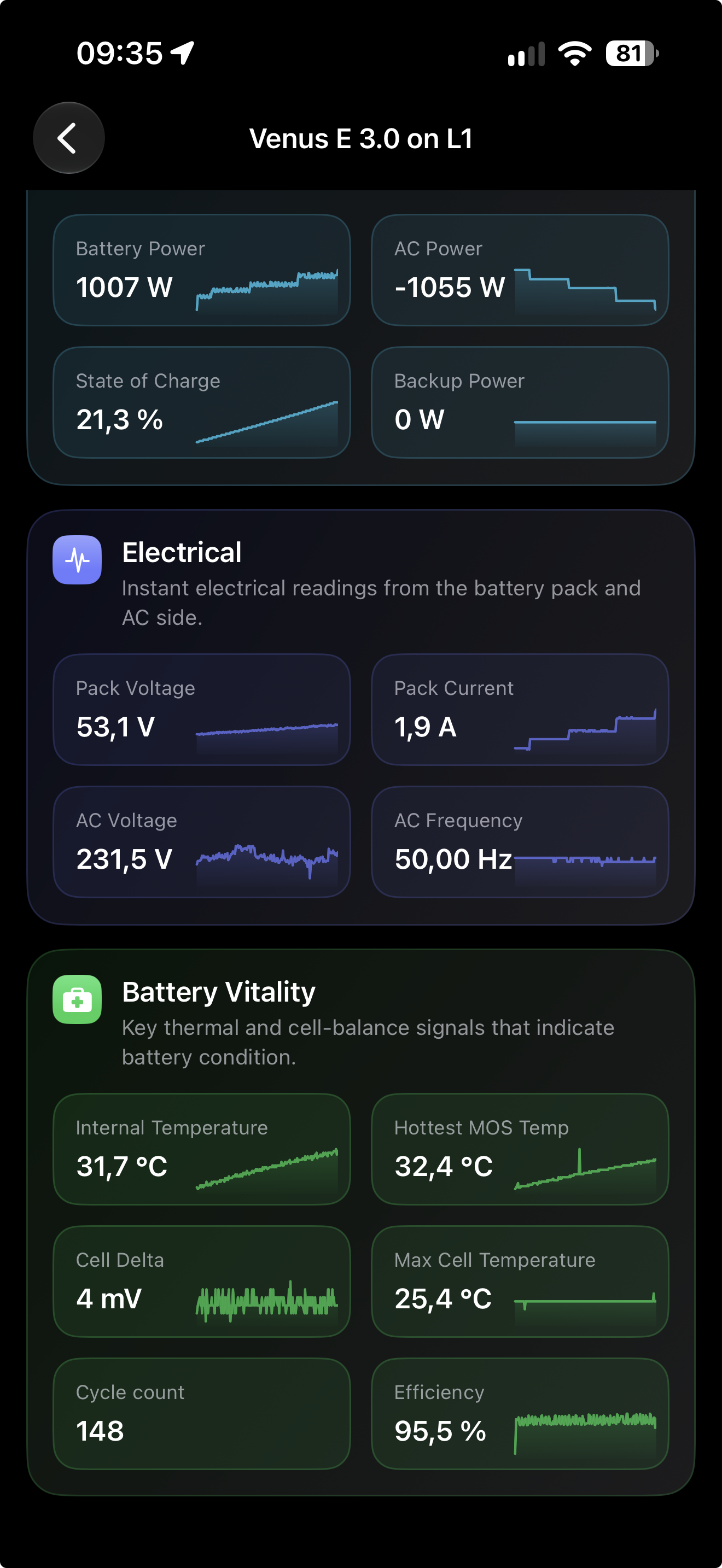
Read temperature, cell delta, cycle information, and electrical context from live battery data.
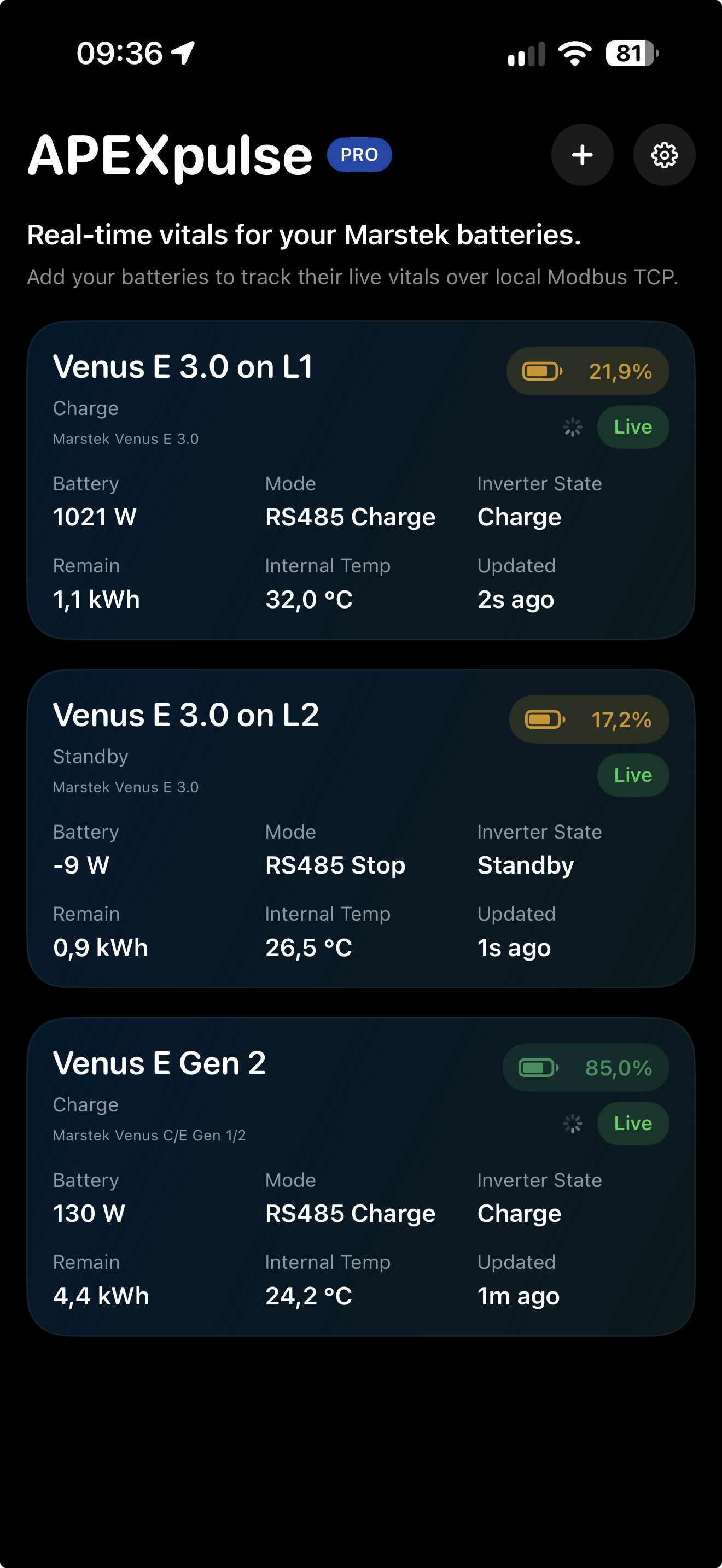
Keep multiple connected batteries visible with their current status, power, capacity, and temperature.
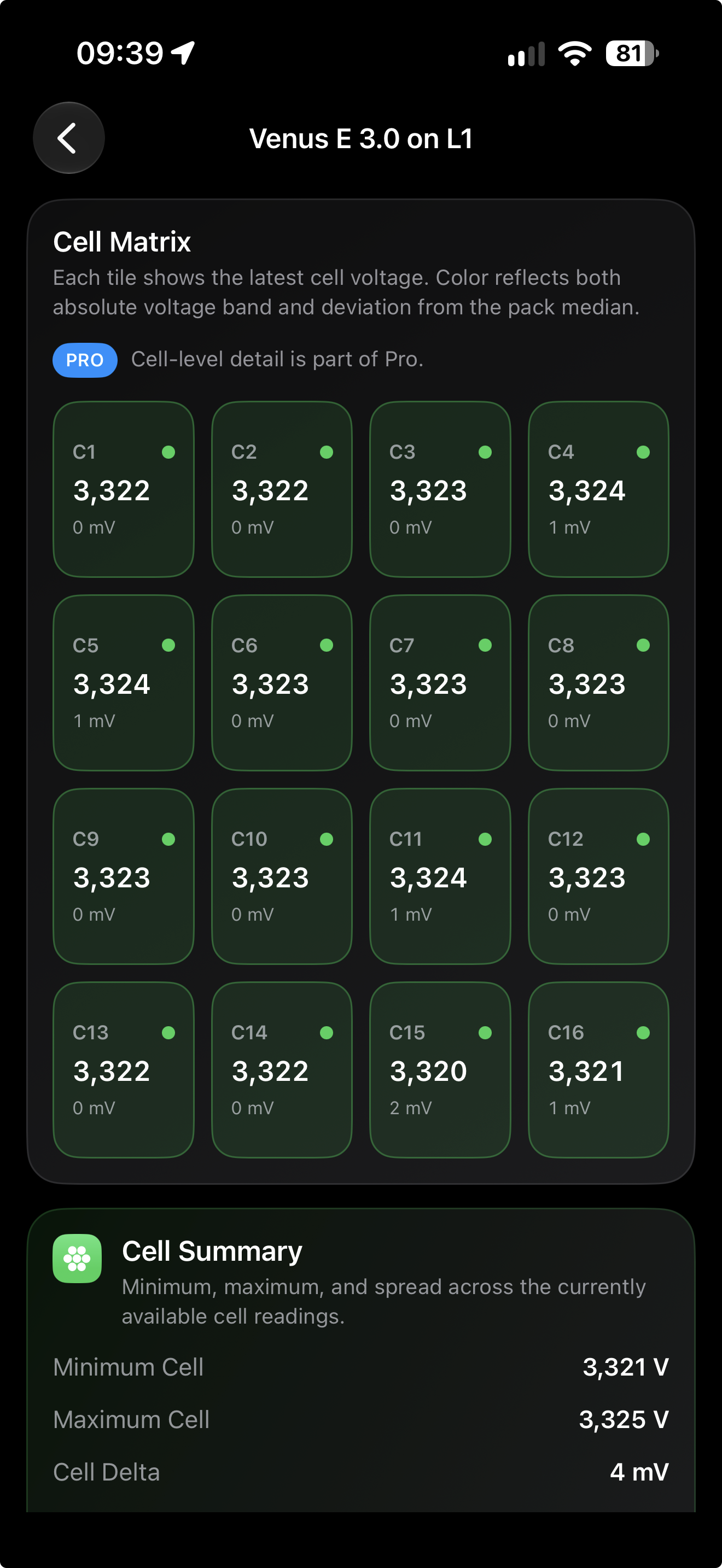
Inspect individual cell voltages and live cell delta on compatible battery models.
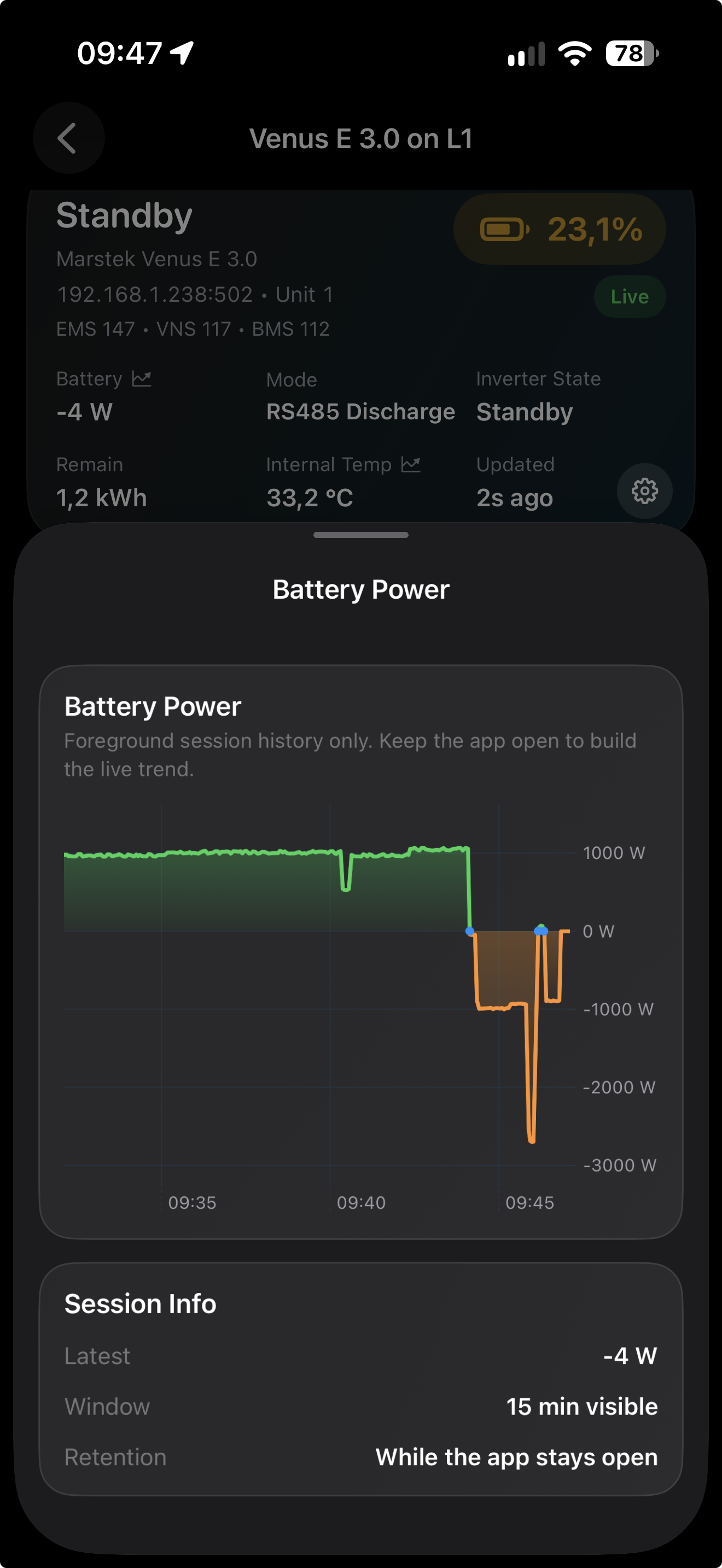
Open a metric for a focused live graph built from the current foreground session.
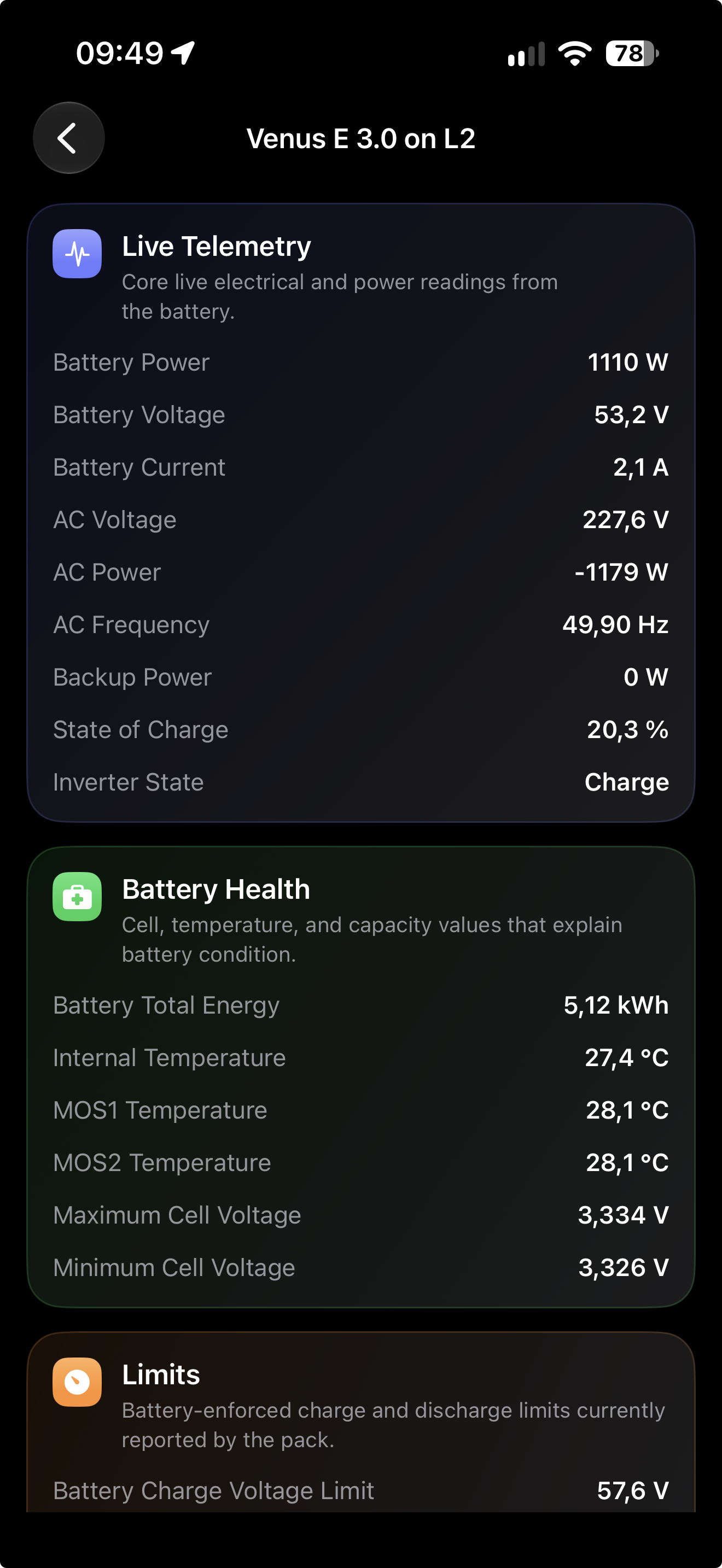
Explore grouped live sensor readings, temperatures, energy values, connectivity, and device information.
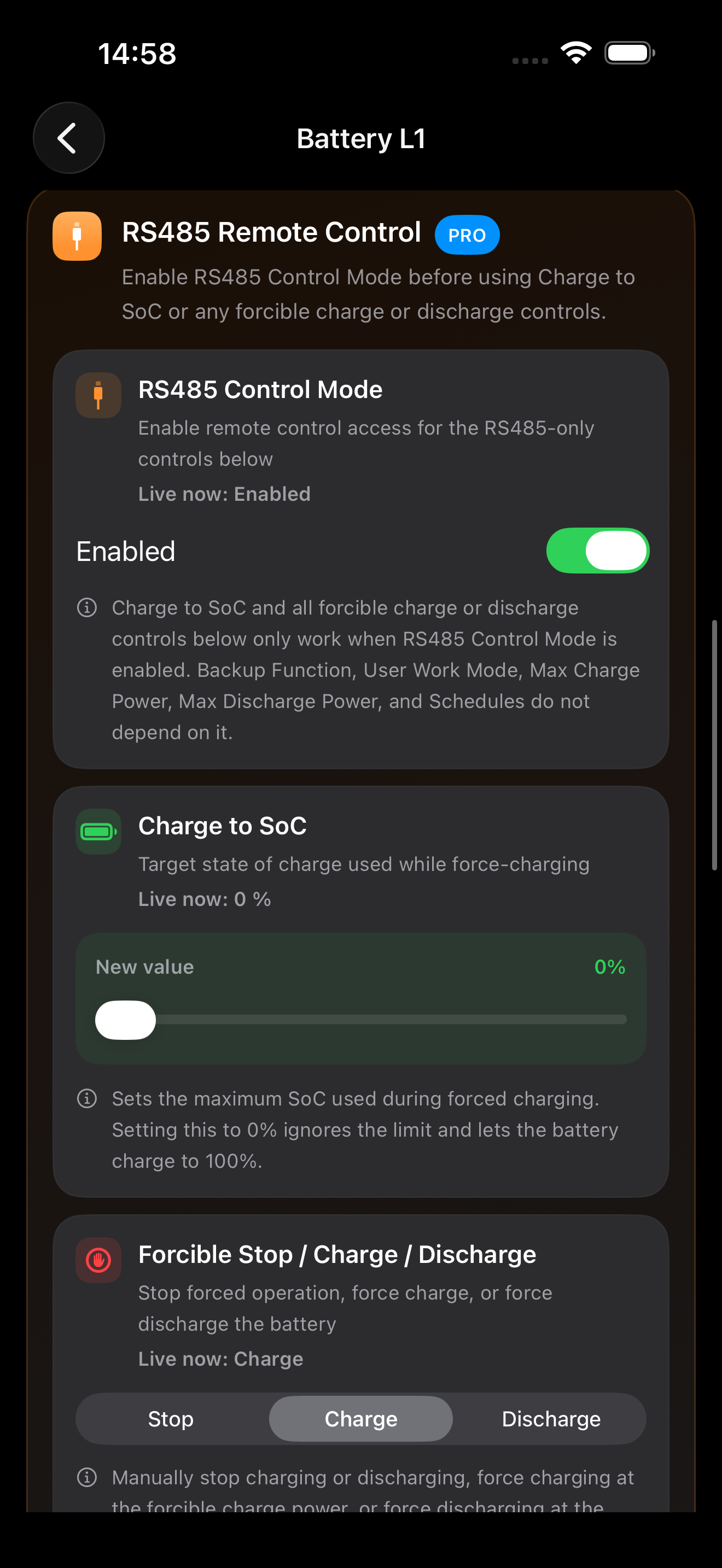
Use available controls for charging, discharging, backup, power limits, and operating modes.
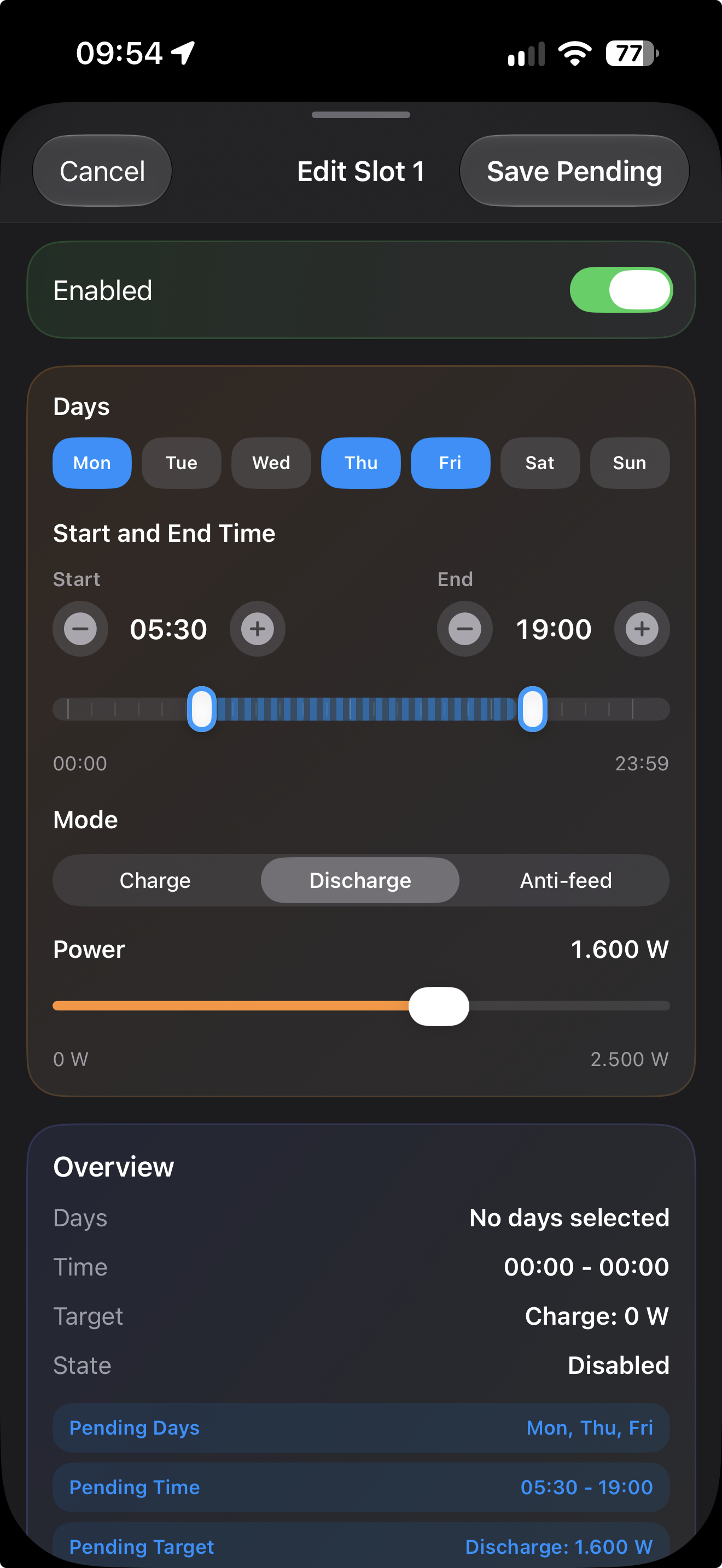
Set charge, discharge, and anti-feed slots with a clear visual timeline editor.
Pricing
Start with the essentials in Free, then upgrade to Pro for deeper insight, control, and multi-battery support.
Everything you need to get started.
Everything in Free, plus advanced insight and control.
Setup
The app uses a local network flow. Check your battery setup, connect the battery or gateway to the network, scan, and start monitoring.
For the Venus E 3.0, update to firmware v144 or later to enable its built-in Modbus TCP support. Venus E 2.0 (Gen 2) and Venus C/E Gen 1 use an external gateway instead.
Connect the battery or its gateway to your local network. The network connection depends on your battery model.
Open APEXpulse and scan for supported batteries or gateways on your local network.
Select your battery and start monitoring live data.
Requirements
These are the practical conditions APEXpulse needs to reach a supported Marstek battery over Modbus TCP.
For the Venus E 3.0, the built-in Modbus TCP server supports one simultaneous client connection. Disconnect the other client for a direct connection, or use a Modbus TCP proxy when both services need access.
Home Assistant
Home Assistant is not required by APEXpulse. It can run alongside the app when the battery or gateway connection is configured so both services can access the data they need.
FAQ
Short answers to the common setup and compatibility questions people ask before they install the app.
On the Marstek Venus E 3.0, built-in Modbus TCP is available through the LAN port and does not work over the battery’s Wi-Fi connection. Venus E 2.0 (Gen 2) and Venus C/E Gen 1 use an external gateway, whose network side may use Ethernet or Wi-Fi.
Yes. Wi-Fi can stay enabled on the Venus E 3.0, but APEXpulse connects through its LAN interface because that is where built-in Modbus TCP is available. For Gen 1 and Gen 2 batteries, the gateway may use Ethernet or Wi-Fi.
Check that your battery family is supported and that the battery or gateway and phone are on the same network. For a Venus E 3.0, verify firmware v144 or later and check whether another service is using its single Modbus TCP connection. Disconnect that client or use a proxy if both services need access.
Yes. For a Venus E 3.0, stop Home Assistant’s direct Modbus TCP connection while using APEXpulse, or use a proxy so both can access the battery. For Gen 1 and Gen 2, the required gateway determines how multiple clients are handled.
APEXpulse supports Marstek Venus E 3.0, Marstek Venus E 2.0 (Gen 2), and Marstek Venus C/E Gen 1. Compare your battery with these supported families before connecting.
Yes. The Venus E 2.0 (Gen 2) and Venus C/E Gen 1 use Modbus RTU / RS-485, so a Modbus RTU-to-Ethernet / Wi-Fi gateway is required. APEXpulse connects to the gateway over the local network, not directly to RS-485.
No. APEXpulse is an independent app and is not affiliated with or endorsed by Marstek Energy Co.
Support
Send a support request directly from the page. This opens an email draft to the APEXpulse support address below.
Get started
Install APEXpulse, scan your network, and take control of your battery setup.